
Overview
The Account & Profile panel in YPYM DBX manages your tenant identity, organizational branding, billing contact records, and administrative access credentials. Multi-user concurrent access is segregated per client organization, ensuring tenant partitions remain strictly isolated across the platform.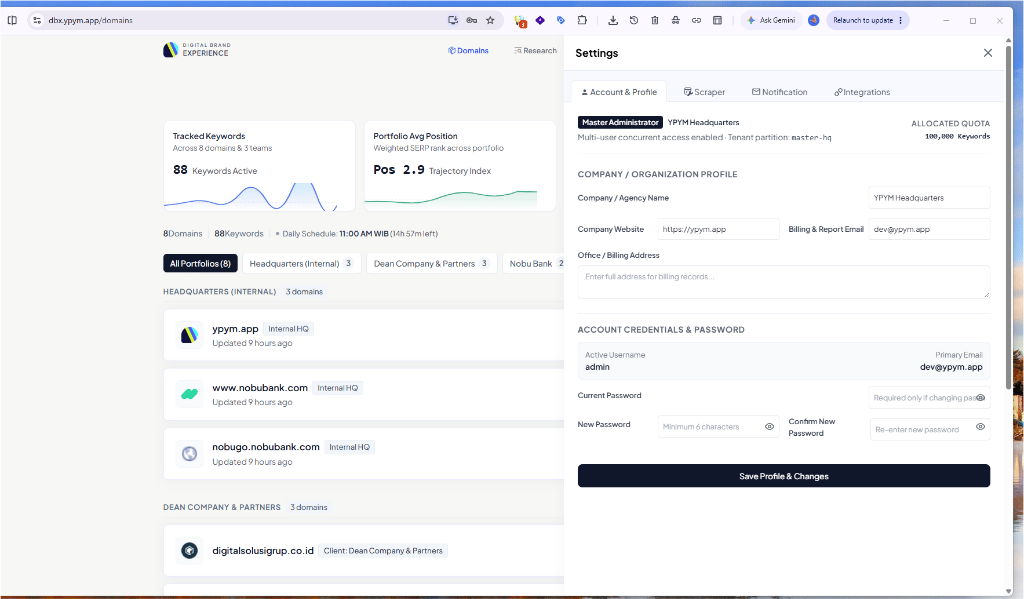
YPYM DBX Account & Profile Settings panel showing tenant tier badges, allocated keyword quotas, company profile inputs, and password management.
1. Account Status & Tenant Quotas
The top header displays your active tenant status and resource allocation:2. Company / Organization Profile
These fields define the legal and operational entity behind your DBX tenant. They are referenced across automated report generation, invoice headers, and audit trails.string
required
The official business name of your organization (e.g.,
YPYM Headquarters or Dean Company & Partners). Used as the display title in exports and email summaries.url
required
Your organization’s primary domain URL (e.g.,
https://ypym.app).email
required
Primary recipient email address for system billing notices, weekly SERP executive summaries, and quota threshold alerts (e.g.,
[email protected]).string
Official physical or mailing address for tax invoicing, corporate accounting, and legal records.
3. Account Credentials & Password Management
DBX enforces strict authentication standards to protect competitive ranking intelligence and API credentials.Active Username
Fixed identity handle for the logged-in administrator (
admin). Modifiable only by Super Administrators via database provisioning.Primary Email
Registered login and account recovery email address (
[email protected]).Changing Your Password
To update your account password:- Current Password: Enter your existing password. Required as a verification challenge before any credential change is accepted.
- New Password: Enter the replacement password (must be at least 8 characters with alphanumeric complexity).
- Confirm New Password: Re-enter the new password to prevent accidental typos.
- Click Save Profile & Changes.
If you are only updating company metadata (such as website or billing address), leave all password fields blank. Passwords are never returned in plain text or logged.